 MATLOOK
Get started
Find your way around
Locate execution targets, feature navigation, projects and the conversation composer.
Automatic result checks#
The pending-actions panel above the composer is removed. Submitted plans wait for approval normally. The host checks verifiable results when a historical conversation opens and when a turn ends and continues eligible tasks within their original approval. Original tool records remain available. Explicit user stops never auto-resume; unknown external operations remain protected against duplicate execution.
Check the top bar first#
Select an execution target, then a workspace. The target selects the computer and its resources; the workspace selects the projects, conversations and configuration. Recheck both names after switching.
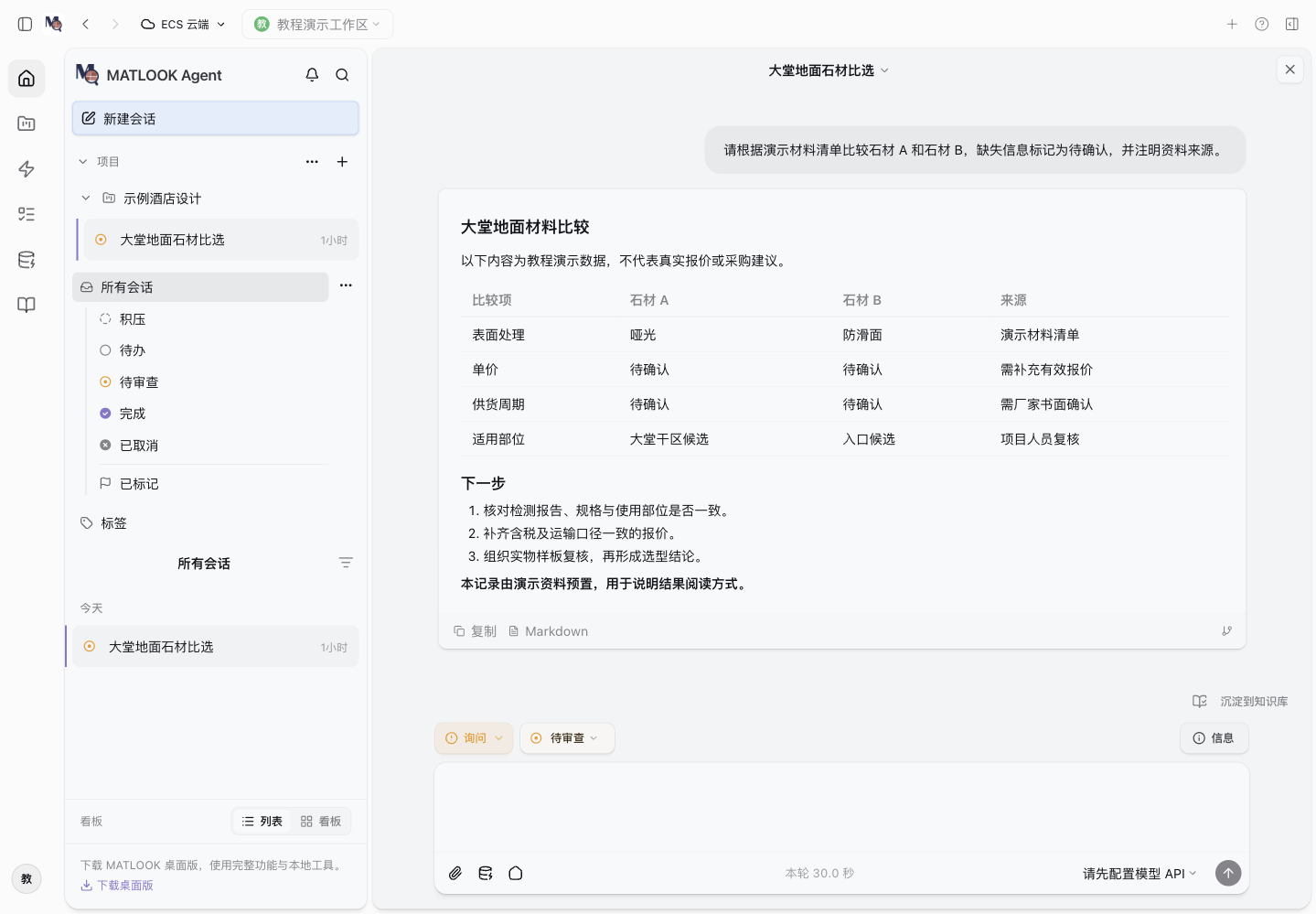 Demo project interface. Window size and client version may change the placement of some controls.
Three main areas#
| Area | Typical controls | Purpose |
|---|---|---|
| Feature rail | Home, Projects, Skills, Automations, Sources, Knowledge | Switch the type of work |
| Project and conversation navigation | New conversation, projects, search, all conversations, list/board | Locate a specific task |
| Conversation and results | History, process details, attachments, model, send/stop | Request work and review outputs |
Before sending#
Check the project, attached files, selected sources, working directory, model and permission mode. The working directory must be accessible on the execution target. An existing conversation may not use the default model you just changed for new conversations.
Read longer results#
Use headings and tables to find conclusions. Expand tool activity to inspect actions. After scrolling into history, use the return-to-latest control. Read an error before deciding whether to retry.
If a control seems missing#
A project's menu and new-conversation icon may appear on hover or keyboard focus. Collapse navigation to gain space in a narrow window. Web and remote views hide some desktop-only controls. Some current interfaces still display Chinese labels; this guide preserves those labels where needed.
Open a guide when you need help#
The bottom-left User guide button opens the online guide. The top-right question mark offers online guides and offline help. Models, knowledge and permissions link to relevant chapters. Public guides need no login and leave the current task open. Entry points differ in older installations.