 MATLOOK
Projects & files
Create & manage projects
Create a project, set its working folder and understand project menus and sorting.
Create a project#
- Select the correct workspace and use the add control next to the project heading.
- Enter a name, description and color. Make the project and phase easy to distinguish.
- Start a conversation from that project row so it belongs to the project immediately.
- Open Project details → Settings to set a working folder when needed. Confirm the folder exists on the execution computer.
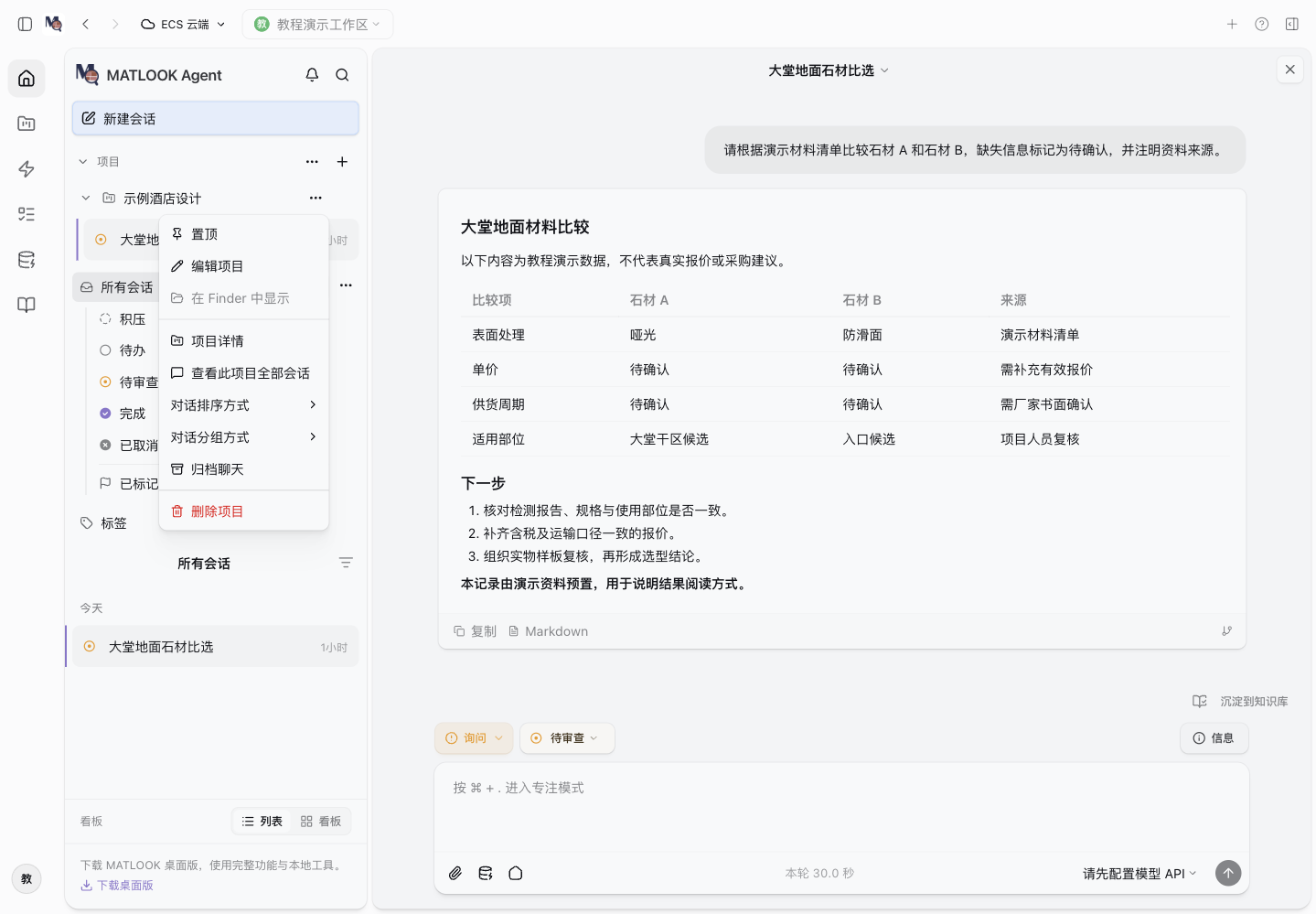 Actual project menu with demonstration content.
Choose the right menu action#
Edit project changes basic information. Project details manages assets and full settings. View all conversations for this project filters the list; it does not execute those conversations. Pin frequently used projects.
Sorting and grouping#
Sorting sets conversation order; grouping puts conversations under date, status or label headings. Choose manual sorting without grouping for a freely ordered list. A project's own sorting setting overrides the default. These display preferences are stored on the current client.
Before archiving or deleting#
End active turns before archiving a project's conversations. Deleting a project affects its asset directory; associated conversations remain without that project association. Back up needed assets first. Archiving a conversation, deleting a project and deleting a file are different operations.
Check the result#
Confirm the project name, accessible folder and conversation membership. Open a representative file to verify the path rather than relying on the folder's name.